Introduction
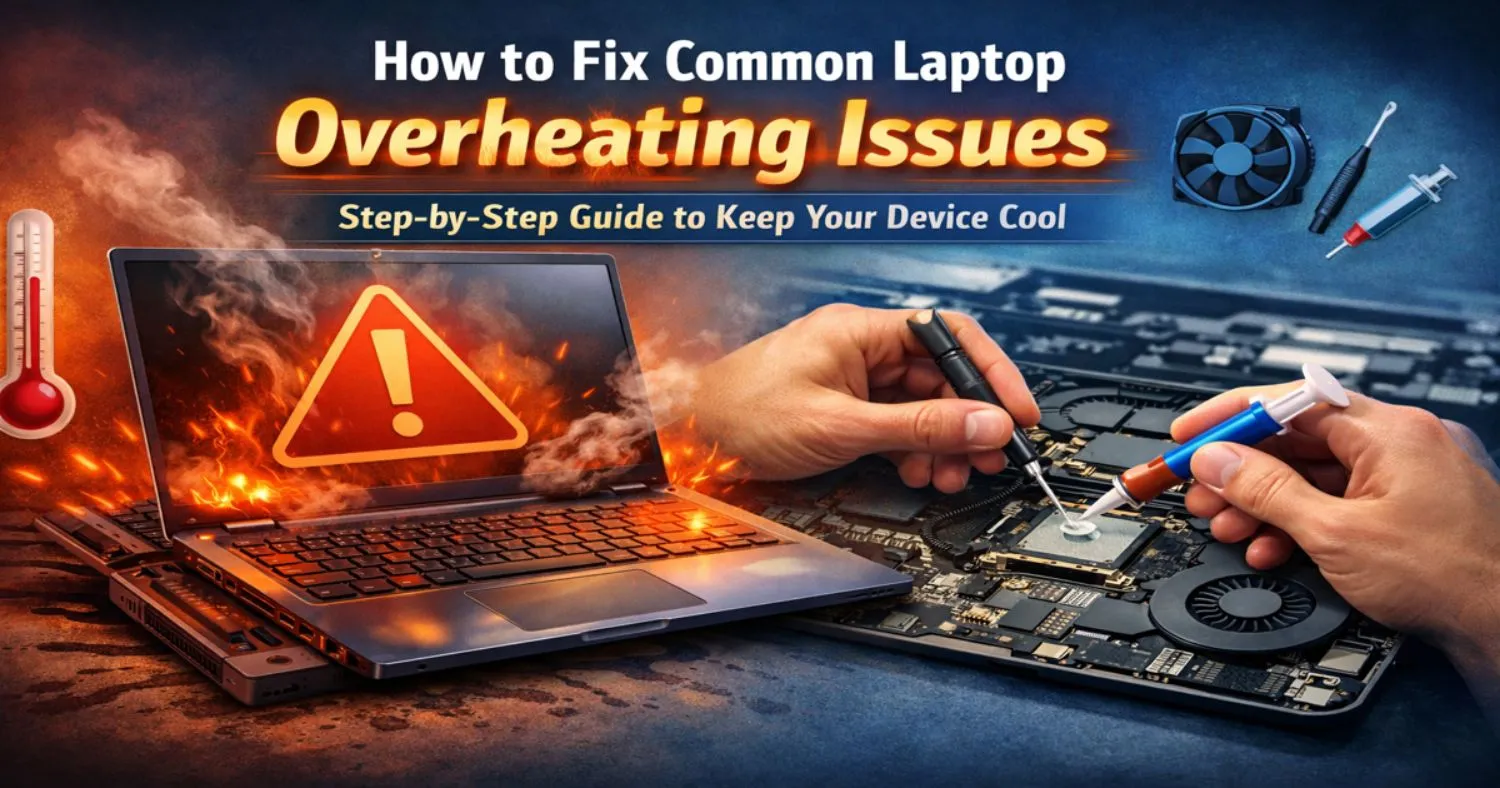
Laptop overheating is a widespread issue that many users encounter, especially when using their devices for extended periods or for high-performance tasks such as gaming or video editing. Overheating can cause significant damage, from slow performance and unexpected shutdowns to hardware failures that could result in costly repairs. Learning how to fix common laptop overheating issues is essential for maintaining your device’s performance and longevity.
In this guide, we’ll walk you through the primary causes of overheating and provide step-by-step solutions to keep your laptop running at optimal temperatures. Whether you’re dealing with frequent overheating during work, gaming, or even casual browsing, you’ll find practical advice on how to restore your laptop to its peak condition.
What Causes Laptop Overheating?
Understanding why laptops overheat is the first step in resolving the issue. There are several factors that contribute to increased temperatures in laptops:
-
Restricted Airflow: Using your laptop on soft surfaces such as beds or pillows can obstruct the cooling vents, causing heat to build up inside the device.
-
Dust and Debris: Dust can accumulate in the vents and fans, restricting airflow and reducing the effectiveness of your laptop’s cooling system.
-
High Workload: Intensive tasks, like gaming or running multiple applications at once, put a strain on the CPU and GPU, which generates more heat.
-
Degraded Thermal Paste: Thermal paste is used to transfer heat from the CPU to the heat sink. Over time, thermal paste can dry out, which leads to inefficient heat dissipation.
-
Environmental Factors: Using your laptop in a hot room or under direct sunlight can elevate internal temperatures.
How to Fix Common Laptop Overheating Issues
Here are practical solutions to fix overheating issues and ensure your laptop stays cool.
Step 1: Clean Your Laptop’s Vents and Fans
Why it Matters:
Dust and debris can clog the fans and vents, which prevents the cooling system from working efficiently. Regularly cleaning the fans and vents can improve airflow and reduce heat buildup.
How to Do It:
-
Turn off your laptop and unplug it from any power sources.
-
Use compressed air to blow out the dust from the air vents and cooling fans. Hold the can upright to avoid moisture buildup.
-
If you’re comfortable, remove the bottom panel to access the internal fan. Use a soft brush to gently remove any dust on the fan blades.
Step 2: Use a Cooling Pad
Why it Matters:
A cooling pad provides additional airflow beneath your laptop, helping to prevent heat buildup. It is particularly useful during extended use, such as gaming or video editing.
How to Do It:
-
Purchase a cooling pad designed for your laptop’s size (usually between 15–17 inches).
-
Place the cooling pad underneath your laptop to help lower the temperature during demanding tasks.
Step 3: Adjust Power Settings
Why it Matters:
Reducing the workload on your laptop’s CPU can help lower its operating temperature. Power settings are designed to manage performance and reduce strain on the hardware when the laptop isn’t being used intensively.
How to Do It:
-
On Windows: Go to Control Panel > Power Options, and select Balanced or Power Saver mode.
-
On Mac: Go to System Preferences > Energy Saver, and adjust the settings to reduce the laptop’s performance during idle times.
Step 4: Reapply Thermal Paste
Why it Matters:
Thermal paste is crucial for transferring heat from the CPU to the heat sink. Over time, it can degrade, leading to higher temperatures. Reapplying fresh thermal paste can help restore effective heat dissipation.
How to Do It:
-
Open the laptop and locate the CPU.
-
Carefully clean the old thermal paste from the CPU and heat sink using isopropyl alcohol and a microfiber cloth.
-
Apply a small, even layer of new thermal paste to the CPU.
-
Reassemble the laptop, and your cooling efficiency should be improved.
Step 5: Ensure Proper Airflow
Why it Matters:
Proper ventilation is essential for maintaining a cool laptop. If airflow is obstructed, even the best cooling systems can’t keep your laptop cool.
How to Do It:
-
Always use your laptop on a flat, hard surface like a desk or table.
-
Avoid using your laptop on soft surfaces like beds, pillows, or blankets, as these can block the vents and reduce airflow.
-
Keep the air vents free from obstructions to allow proper airflow.
Preventing Future Overheating: Long-Term Solutions
While fixing your laptop’s overheating issue is important, taking steps to prevent future problems is equally crucial. Here are some additional tips to ensure your laptop stays cool over the long term:
-
Regular Cleaning: Clean the vents and fans every few months to prevent dust buildup. If you use your laptop in a dusty environment, more frequent cleaning may be necessary.
-
Monitor Temperature: Use software tools such as Core Temp (for Windows) or iStat Menus (for Mac) to keep an eye on your laptop’s temperature. If your laptop regularly exceeds safe temperatures (usually above 90°C), consider additional cooling measures.
-
Environmental Awareness: Avoid using your laptop in hot rooms or under direct sunlight. Ensure the environment is cool and well-ventilated.
Choosing the Right Cooling Products
If you’re considering purchasing additional cooling products to help combat overheating, here are a few options to consider:
-
Cooling Pads: External cooling pads are a great way to improve airflow around your laptop. They are typically priced between $20 and $100, depending on the brand and features.
-
External Fans: Laptop fans can be used to increase airflow and reduce heat buildup.
-
Thermal Paste: Replacing old thermal paste can cost anywhere from $5 to $15 per tube. Brands like Arctic Silver 5 and Cooler Master are highly recommended.
Common Mistakes to Avoid
-
Using Your Laptop on Soft Surfaces: Always place your laptop on a hard, flat surface. Soft surfaces like beds or couches block the cooling vents and can lead to overheating.
-
Ignoring Loud Fans: If your laptop’s fans are running loudly, it may be a sign that the cooling system is struggling. This often happens due to dust buildup or insufficient airflow.
-
Overclocking Without Adequate Cooling: Overclocking increases heat production. If you’re overclocking your laptop, ensure you have the proper cooling in place to prevent overheating.
FAQs
-
Why does my laptop overheat?
-
Laptops overheat due to poor airflow, dust accumulation, high workload, aging thermal paste, and environmental factors like high ambient temperature.
-
-
How can I fix my laptop from overheating without opening it?
-
You can clean the vents with compressed air and use a cooling pad to enhance airflow and reduce overheating.
-
-
Is it normal for a laptop to overheat during gaming?
-
Yes, gaming is a resource-intensive task that puts a lot of strain on the CPU and GPU, which can cause your laptop to overheat. Use a cooling pad to help manage temperatures.
-
-
Can overheating damage my laptop’s battery?
-
Yes, prolonged overheating can degrade your laptop’s battery and other internal components, reducing their lifespan.
-
-
How often should I clean my laptop’s fan?
-
Clean your laptop’s fan every 3–6 months, especially if you use your laptop in dusty or high-traffic environments.
-
-
What are the signs that my laptop is overheating?
-
Overheating signs include loud fan noise, system freezes, sudden shutdowns, and poor performance.
-
-
What is the best thermal paste for laptop overheating issues?
-
Popular thermal paste brands include Arctic Silver 5 and Cooler Master, which are known for their high-quality heat dissipation.
-
Conclusion
Laptop overheating is a common yet preventable issue that can cause significant performance degradation and even permanent damage if not addressed promptly. By following these practical steps—cleaning the vents, using a cooling pad, adjusting power settings, and reapplying thermal paste—you can effectively manage and prevent overheating.
Maintaining a cool environment for your laptop, both physically and in terms of workload, will help ensure that it runs smoothly for years to come. Regular cleaning, monitoring, and awareness of your laptop’s temperature will go a long way in preventing overheating and keeping your device in peak condition.