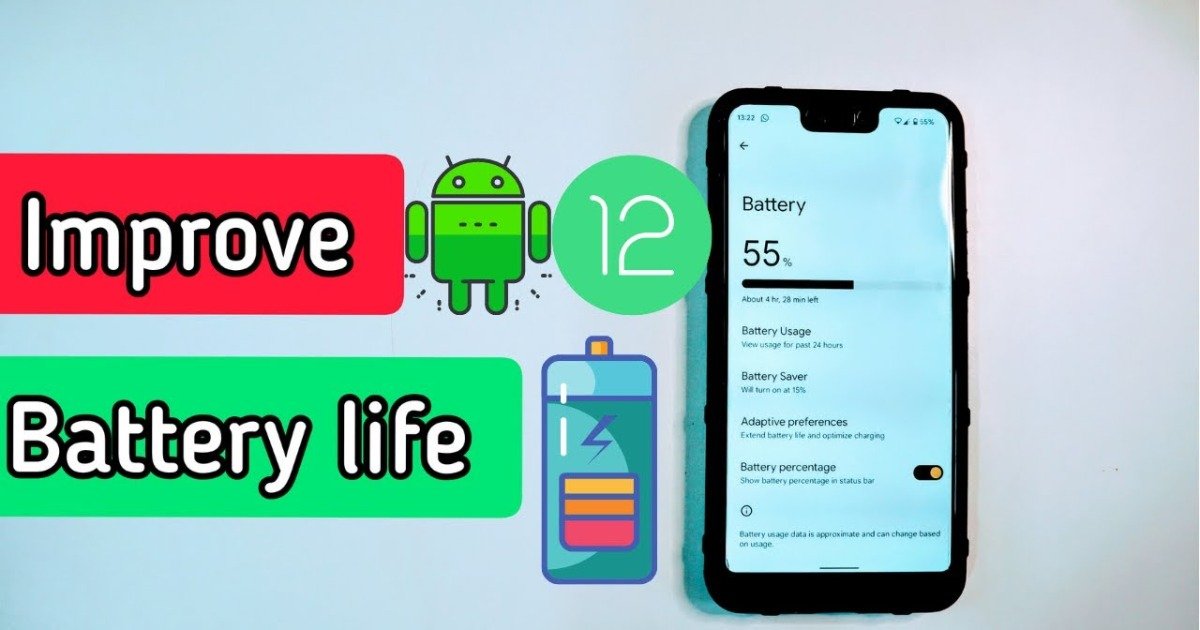
Meta Description: Master Android 15 battery life on Android 15 with expert tips on Private Space, 16 KB page size, and cycle counts. Fix post-update drain and extend your screen-on time now.
The release of Android 15, internally known as “Vanilla Ice Cream,” marks a significant shift in how Google handles mobile power management. Unlike previous versions that relied on broad “Battery Saver” toggles, Android 15 introduces granular control over the Linux kernel, specialized background task handling, and sophisticated hardware diagnostics.
If you have recently updated and noticed your percentage dropping faster than usual, you aren’t alone. Major OS updates trigger intensive system indexing and app recompilation that can last for days. This guide provides a comprehensive framework to not only fix immediate drain but also to optimize your device for long-term Lithium-ion health.
The Android 15 “Quick Fix” Stack
If you are in a rush and need to stop a massive drain immediately, apply these five settings. They offer the highest return on investment for power preservation without breaking core functionality.
-
Enable Adaptive Battery: Go to Settings > Battery > Adaptive Preferences and ensure “Adaptive Battery” is toggled on. This uses on-device AI to learn which apps you rarely use and lowers their priority.
-
Switch to Dark Mode: For devices with OLED or AMOLED screens (like the Pixel 9 or Galaxy S24), black pixels are physically powered off. This can reduce display power draw by up to 15%.
-
Force 60Hz Refresh Rate: If your phone has an LTPO display, it usually runs at 120Hz. Forcing 60Hz in Settings > Display significantly reduces the GPU’s workload.
-
Restrict High-Drain Apps: Navigate to Settings > Battery > Battery Usage. Identify any social media or GPS apps taking more than 5% of your total charge and set them to “Restricted.”
-
Lower Child Window Brightness: A hidden gem in Android 15’s Developer Options that reduces the luminosity of overlays and pop-up windows.
1. Understanding the “Post-Update” Drain Period
One of the most common user complaints is a sudden spike in battery consumption immediately after installing Android 15. This is rarely a bug; it is a technical necessity.
System Indexing & App Recompilation
When your phone reboots after the update, it initiates System Indexing. The OS is re-scanning every file, photo, and message to work with the new Android 15 search APIs-battery life on Android 15. Simultaneously, the system performs AOT (Ahead-of-Time) compilation, where apps are optimized to run on the updated Linux kernel.
The 48-Hour Rule: Expect your battery life to be 10–20% worse for the first two to three days. During this window, keep your phone plugged in overnight to allow the “App Standby Buckets” to reorganize themselves without interrupting your daily usage.
2. Managing the New Private Space Feature
Android 15 introduces Private Space, a sandboxed environment for sensitive apps. While excellent for privacy, it effectively runs a second “user” profile on your device.
Apps inside the Private Space can consume background resources even when the space is locked. To prevent this:
-
Open Settings > Security & Privacy > Private Space.
-
Select “Hide Private Space when locked.” 3. This setting ensures the system suspends the activities of those apps more aggressively when they aren’t in use, preventing “vampire drain” from hidden background processes.
3. Technical Deep Dive: 16 KB Page Size Support
A major architectural change in Android 15 is the support for 16 KB memory page sizes (up from the traditional 4 KB). While this sounds like a developer-only detail, it has a massive impact on your battery.
| Feature | 4 KB Standard | 16 KB Optimized (Android 15) | Battery Impact |
| App Launch Power | High | Reduced by ~4.5% | Lower CPU overhead during starts |
| Camera Startup | Standard | 4–6% Faster | Less “warm-up” energy used |
| System Boot | Standard | 8% Quicker | Efficient cold-start cycles |
Expert Tip: If you are using a Pixel 8 or 9 series device, the system is already beginning to utilize this alignment to reduce the “administrative work” the CPU has to perform. This means fewer CPU wake-ups (External Syncs) and more time in a deep sleep state.
4. Advanced Connectivity: Modems and Modifiers
The mobile modem is often the single largest consumer of power after the display. In Android 15, the way the device “hunts” for signal has been refined, but user intervention is still required in certain geographic zones.
The 5G vs. LTE Trade-off-battery life on Android 15
If you live in a region where 5G signal is “patchy” (common in dense urban centers or rural outskirts), your phone will constantly switch between 5G and LTE. This “ping-ponging” causes the modem to run at high power, generating heat and draining the battery.
-
The Fix: Go to Settings > Network & Internet > SIMs > Preferred Network Type and select LTE. You will likely find your battery life improves by 30–60 minutes of Screen-on-Time (SoT) daily.
Wi-Fi Scanning and “Always Active” Data
In Developer Options, ensure “Mobile Data Always Active” is toggled Off. This prevents the phone from keeping the cellular radio “warm” while you are on a stable Wi-Fi connection.
5. Battery Health Diagnostics: The 80% Rule
Android 15 finally brings Apple-style Battery Health transparency to the masses. For the first time, users can access the Device Diagnostics menu to see the physical state of their battery.
How to Check Battery Cycles on Android 15
-
Go to Settings > About Phone.
-
Tap on Battery Information.
-
Here you will see the Cycle Count (how many times the battery has gone from 0 to 100%) and the Manufacture Date.
Why it matters: A typical Lithium-ion battery begins to degrade significantly after 500–800 cycles. If your cycle count is over 1,000, no amount of software optimization will fix your drain; you likely need a physical replacement.
Using the 80% Limit
Under Settings > Battery > Charging Optimization, Android 15 now allows you to set a hard cap at 80%. This prevents the battery from sitting at high voltage for extended periods, which is the primary cause of chemical aging. Use this if you plan to keep your phone for more than two years.
6. App Standby Buckets & Background Restrictions
Android 15 uses a system called App Standby Buckets to categorize apps based on how often you use them.
-
Active: No restrictions.
-
Working Set: Mild restrictions.
-
Frequent: Moderate restrictions on “Alarms” and “Jobs.”
-
Rare: Strict limits; apps may only sync once every few hours.
-
Restricted: Apps can only run once a day in a 10-minute window.
Expert Advice: Do not manually “Clear All” apps from your recent menu. This forces the system to move the app from a “Cold Start” next time you open it, which uses significantly more CPU power than resuming it from RAM. Only force-close apps that are actively malfunctioning.
7. Managing Display & Thermal Throttling
Heat is the enemy of battery efficiency. When a phone gets hot, the internal resistance of the battery increases, meaning it has to work harder to provide the same amount of power.
Lowering the “Child Window” Brightness
Android 15 includes a new rendering logic for pop-ups and notifications. By enabling the “Lower child window brightness” setting in Developer Options, you reduce the peak brightness of non-essential UI elements, saving incremental power throughout the day.
Thermal Management Tips
-
Remove the Case during Charging: If you use a thick, rugged case, it can trap heat during fast-charging sessions (USB-C PD 3.1), accelerating degradation.
-
Disable “Always-on Display” (AOD): While convenient, AOD usually accounts for 1% of battery drain per hour. Over a 24-hour period, that is nearly a quarter of your total capacity.
8. Common Mistakes and Myths
-
Myth: Battery Calibration is necessary every week.
-
Fact: Modern Androids calibrate themselves. You only need to perform a full 0% to 100% cycle once every few months to “reset” the digital fuel gauge.
-
-
Mistake: Using “Task Killer” Apps.
-
Fact: These apps are relics of the Android 2.3 era. In Android 15, they interfere with the system’s native machine learning and actually cause more drain by triggering constant restarts.
-
-
Mistake: Leaving Bluetooth and Wi-Fi Scanning on.
-
Fact: Go to Settings > Location > Location Services and turn off Wi-Fi Scanning and Bluetooth Scanning. This prevents the phone from constantly searching for nearby beacons even when your main toggles are off.
-
FAQs: People Also Ask
Why is my battery draining so fast on Android 15?
Most likely due to the “Post-Update” indexing period. Your phone is busy re-optimizing apps and files for the new OS. This should stabilize within 48 to 72 hours.
Does Android 15 have a battery health percentage?
Yes, but it varies by manufacturer. On Pixel devices running Android 15, you can find battery capacity and cycle counts under Settings > About Phone > Battery Information.
How do I fix Google Pixel 9 battery drain on Android 15?
The Pixel 9 benefits most from “Adaptive Charging” and the new “Device Diagnostics” tool. Ensure you have the latest “Google Play System Update” installed, as these often contain modem firmware fixes.
Does Private Space use more battery?
It can. Since it hosts a separate set of background processes, it acts like a second phone running inside your first. Use the “Hide when locked” feature to minimize its power footprint.
Should I limit my charging to 80%?
If you want your phone to last 3+ years, yes. If you trade in your phone every year, you are better off charging to 100% to maximize your daily usage.
Is it safe to use a 65W charger on an Android 15 phone?
Yes. Modern Android 15 devices use USB-C Power Delivery (PD) standards. The phone will only “pull” the amount of wattage it can safely handle. However, slower charging generates less heat, which is better for the battery’s lifespan.
Does 5G drain more battery than Wi-Fi?
Significantly. Wi-Fi is much more efficient at maintaining a data connection. Whenever possible, stay connected to a known Wi-Fi network to save up to 20% of your daily battery life.
Conclusion
Improving battery life on Android 15 is a balance between software optimization and hardware awareness. While the OS has become much smarter at managing “App Standby Buckets” and kernel-level tasks, the user still holds the keys to significant gains through network management and Private Space hygiene.
Your Final Checklist:
-
Wait 72 hours after the update for indexing to finish.
-
Enable Adaptive Battery and Dark Mode.
-
Set high-drain apps to “Restricted” in the battery settings.
-
Monitor your Cycle Count in the new Diagnostics menu to ensure your hardware is still healthy.